







FREE LOCAL SEO TOOL
Google ID and Review Link Generator
Looking for a simple way to share your Google Business Profile listing with customers? With this free tool, you can generate a Google review link for customers, and find the Place ID, Ludocid, and FID codes Google uses to identify a business.
Try our other free tools
Get quick insights into your local search performance — no setup, no cost, no SEO expertise required.
Our free tools help with your local SEO needs.
Our free tools help with your local SEO needs.
Local SERP Checker
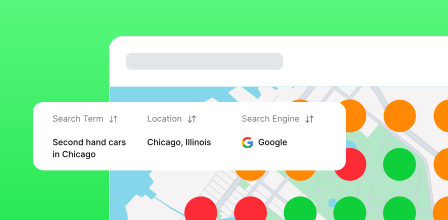
See what customers see in search
View Google search results from any location to understand how your business appears to nearby customers in local search and how you compare to competitors.
Rank Fluctuation Monitor
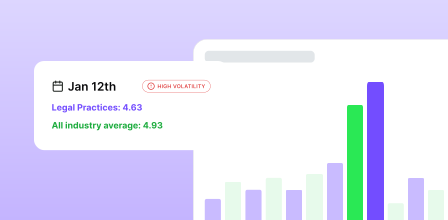
Stay on top of algorithm changes
Be the first to know about any changes to Google’s local search algorithm by signing up to our daily, weekly or ‘urgent only’ Local Rank Flux alerts.

Try the BrightLocal platform free for 14 days
Track rankings, manage listings, and grow your reputation from one place.
All features. Unlimited access. No card required.
Frequently asked questions

We’ve gathered the most common questions our community asks to help you move forward with total confidence. If your question isn’t there, we’re only a message away.
Google Place ID is a unique identifier that Google assigns to your business. Google uses this unique ID to identify your business within its Google Maps and Google Places database.
Place ID is used by various APIs, including Routes API, Directions API, Directions Services API, Places API, Maps Embed API, and Maps URLs. The Places API is the most common use for your Place ID. This allows Google to return a wealth of useful information about your business, including the business name, address, opening hours, URL, and contact information.
A second important use relates to reviews. Your Google Place ID can be used to create a URL for a page where you can request customer reviews and show all previous reviews gathered in one location.
Place ID is used by various APIs, including Routes API, Directions API, Directions Services API, Places API, Maps Embed API, and Maps URLs. The Places API is the most common use for your Place ID. This allows Google to return a wealth of useful information about your business, including the business name, address, opening hours, URL, and contact information.
A second important use relates to reviews. Your Google Place ID can be used to create a URL for a page where you can request customer reviews and show all previous reviews gathered in one location.
For Google and its Maps and Search tools to confidently and consistently identify each business, a Google Map Place ID is assigned. This unique identifier applies to each business and continues to apply to that business even if some details change. The Place ID will remain the same if the business is relocated, for example.
Developers can use the Place ID in conjunction with Google APIs such as the Places API and the Maps APIs. This allows the business location to be referenced accurately in Maps.
The Place ID can also be used with other APIs to assist with tasks such as generating directions, origin information, and waypoints.
You can search by Place ID in Google Maps APIs to get more information about a business. This includes details such as telephone number, street address, and opening hours.
Once you have the Place ID, it can also be used to create a page to display all the reviews for that business or to allow customers to leave new reviews. To do this, the ID needs to be used within the URL structure. Google will then convert that URL into a new page using the review ID (FID) and the Ludocid, which pulls up the knowledge panel for that business.
Developers can use the Place ID in conjunction with Google APIs such as the Places API and the Maps APIs. This allows the business location to be referenced accurately in Maps.
The Place ID can also be used with other APIs to assist with tasks such as generating directions, origin information, and waypoints.
You can search by Place ID in Google Maps APIs to get more information about a business. This includes details such as telephone number, street address, and opening hours.
Once you have the Place ID, it can also be used to create a page to display all the reviews for that business or to allow customers to leave new reviews. To do this, the ID needs to be used within the URL structure. Google will then convert that URL into a new page using the review ID (FID) and the Ludocid, which pulls up the knowledge panel for that business.
There are two common uses of the Place ID. The first is in the Google Places API; passing this ID to Google can return extensive information about a business, including its name, address, website URL, opening hours, etc. The second use is in constructing a Google search URL to trigger a page that displays all the reviews for a business, or the page where users can write a new review for a business. When Google sees these IDs in a URL, it automatically converts it to a different URL that combines the Ludocid with the FID.
See the Place ID in action for reading reviews and writing reviews.
See the Place ID in action for reading reviews and writing reviews.
Your simplest option is to use the tool above you on this page. BrightLocal’s Google Place ID Generator lets you find your Place ID easily.
To find your Google Place ID manually via Google, follow these steps:
Step 1: Visit the Google Maps Platform
Open up a browser window and navigate to the following URL: https://developers.google.com/maps/documentation/places/web-service/place-id. This is a guide to the Web Services Places API tool. Within it, you’ll find a Google Place ID finder.
Step 2: Locate the Google Maps Place ID lookup tool
Scroll a short way down the page, and you’ll see a Google Maps box with a search bar at the top of the map.
Step 3: Input your business address
Begin to type in your business address. You’ll see a dropdown list appear as you begin entering your business name or location. Select the correct address from the list provided.
Step 4: Make a note of the Google Place ID
The Google Place ID will now appear on the screen. You can copy this ID and save it for future reference. The Place ID may not look exactly like the example shown above. Some IDs are shorter, and others may be longer.
If you still can’t find your Google Place ID, here are a few things to try.
Confirm Google Business Profile verification status: First, check that you have verified your Google Business Profile for the business you need to locate the Place ID. If your listing hasn’t been verified, you may not be able to find its Place ID.
Switch to another Place ID finder tool: If you can’t find your Google Place ID using the first method outlined above on the Places API, try using a different tool.
Try a different API: If the Places API isn’t working, you could also try to find your Place ID using another API, such as the Text Search Option or Nearby Search API.
Try Google Search: If the previous methods still haven’t resulted in your Places ID being located, try this method using Google Search:
Step 1: Open a new browser window, head to Google, and type in your business name.
Step 2: Verify the knowledge panel appears on that page.
Step 3: Right-click and then select ‘View Page Source’.
Step 4: You’ll now see a page of HTML code. Open the ‘Find’ search box by CTRL + F on your keyboard. Enter lu-rap-thank-you-dialog in the search box.
Step 5: Your Places ID is found directly after the phrase lu-rap-thank-you-dialog
Step 1: Visit the Google Maps Platform
Open up a browser window and navigate to the following URL: https://developers.google.com/maps/documentation/places/web-service/place-id. This is a guide to the Web Services Places API tool. Within it, you’ll find a Google Place ID finder.
Step 2: Locate the Google Maps Place ID lookup tool
Scroll a short way down the page, and you’ll see a Google Maps box with a search bar at the top of the map.
Step 3: Input your business address
Begin to type in your business address. You’ll see a dropdown list appear as you begin entering your business name or location. Select the correct address from the list provided.
Step 4: Make a note of the Google Place ID
The Google Place ID will now appear on the screen. You can copy this ID and save it for future reference. The Place ID may not look exactly like the example shown above. Some IDs are shorter, and others may be longer.
If you still can’t find your Google Place ID, here are a few things to try.
Confirm Google Business Profile verification status: First, check that you have verified your Google Business Profile for the business you need to locate the Place ID. If your listing hasn’t been verified, you may not be able to find its Place ID.
Switch to another Place ID finder tool: If you can’t find your Google Place ID using the first method outlined above on the Places API, try using a different tool.
Try a different API: If the Places API isn’t working, you could also try to find your Place ID using another API, such as the Text Search Option or Nearby Search API.
Try Google Search: If the previous methods still haven’t resulted in your Places ID being located, try this method using Google Search:
Step 1: Open a new browser window, head to Google, and type in your business name.
Step 2: Verify the knowledge panel appears on that page.
Step 3: Right-click and then select ‘View Page Source’.
Step 4: You’ll now see a page of HTML code. Open the ‘Find’ search box by CTRL + F on your keyboard. Enter lu-rap-thank-you-dialog in the search box.
Step 5: Your Places ID is found directly after the phrase lu-rap-thank-you-dialog
The Ludocid, sometimes referred to as the ‘CID’, is a unique ID that Google assigns to a specific business location in order to identify it within its systems.
The Ludocid can be used within Google search URLs to return the Knowledge Panel for that specific business. It can also be used within Google Maps to view a specific business. Here’s an example of Ludocid in action within a Google Maps URL
The FID is a unique ID that relates to reviews that Google holds about a specific business.
The FID has fewer practical uses than the Ludocid and the Place ID, as it’s primarily used in combination with the Place ID to generate a ‘write reviews’ or ‘read reviews’ URL. If you know the Place ID, then Google converts this to the FID for you, so you’re unlikely to use the FID directly. It’s easier to create URLs to read or write reviews using the Place ID, but we thought we’d add it here in case it’s of use.